Blendflare Thumbnail Generator
A Blender addon designed to generate professional, consistent thumbnails for materials, brushes, and 3D assets following Blendflare's official upload guidelines.
Download Addon
Compatible with Blender 4.2+
This addon automates thumbnail creation to maintain visual consistency across Blendflare's explore page. While not mandatory, it streamlines the thumbnail generation process for most workflows.
- 1.Download the latest release ZIP file from the GitHub releases page
- 2.In Blender, go to
Edit > Preferences > Add-ons - 3.Click
Install...and select the downloaded ZIP - 4.Enable the addon by checking the box next to "Blendflare Thumbnail Generator"
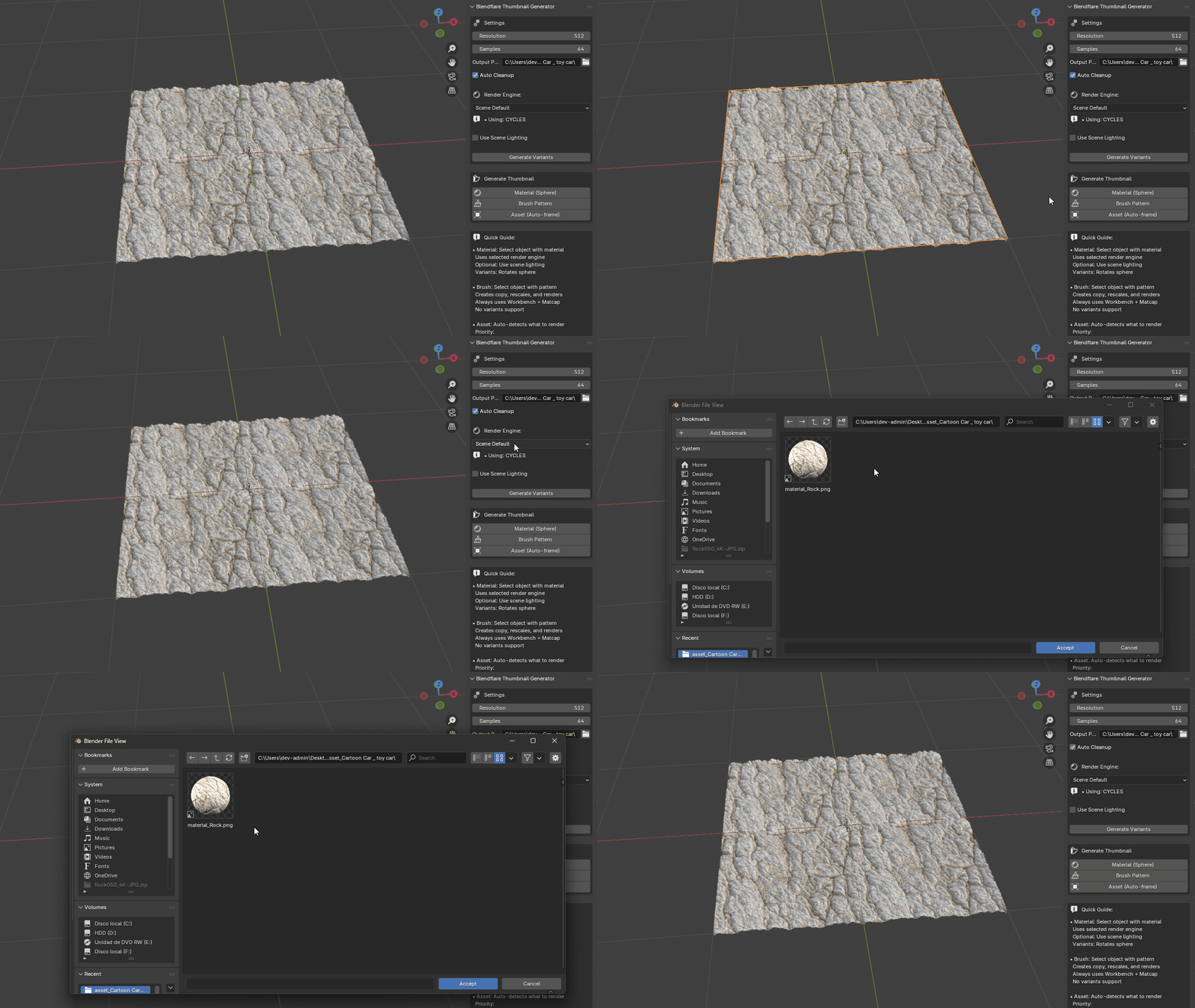
Material (Sphere)
- •Displays materials on a UV-mapped sphere
- •Optional studio lighting or scene lighting
- •Supports render engine selection (Cycles/Eevee/Scene default)
- •Generate rotation variants to avoid seams
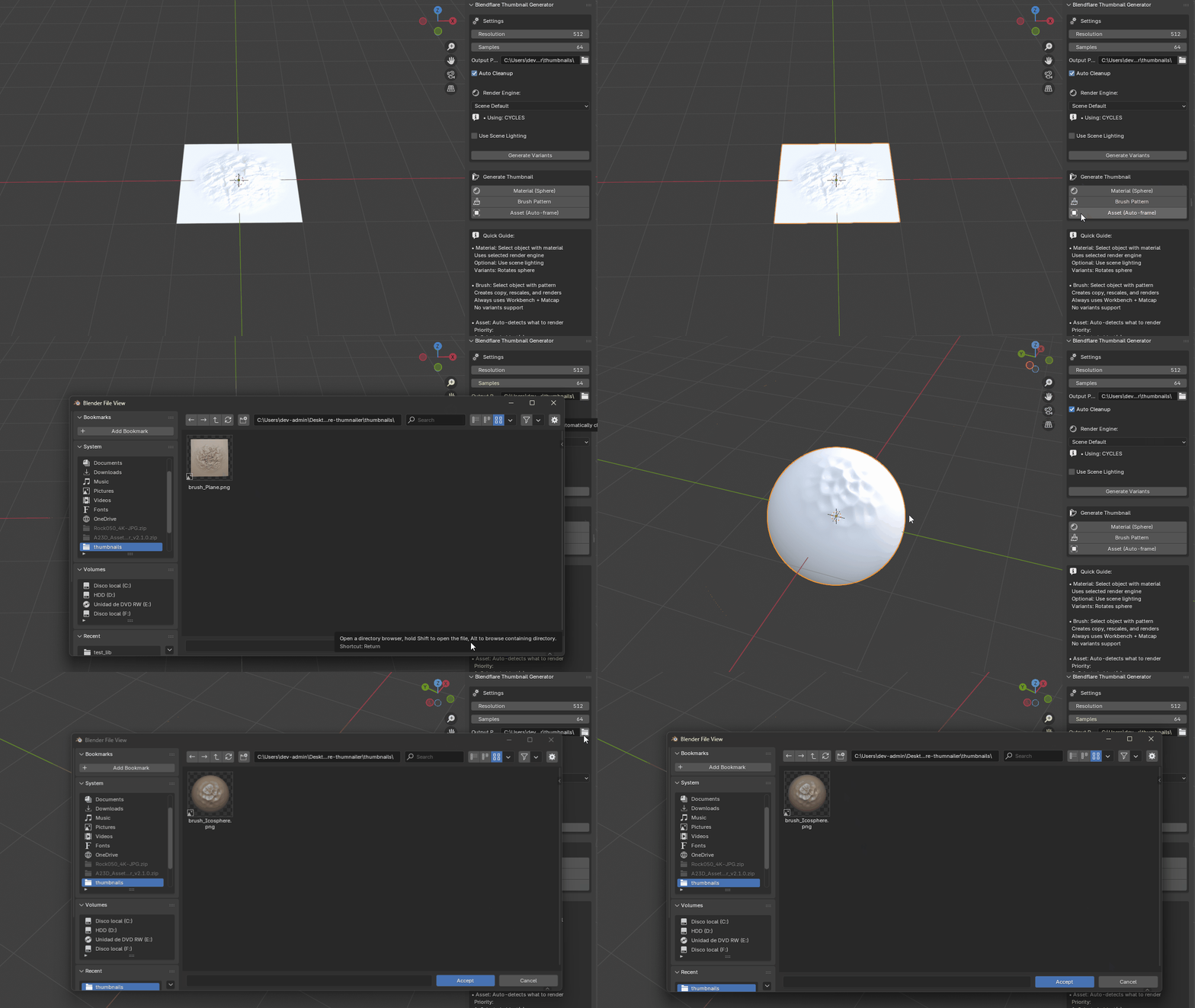
Brush Pattern
- •Renders sculpting brush patterns using Workbench + Matcap
- •Auto-scales and centers the pattern
- •Intelligent pattern direction detection
- •Always uses transparent background
Asset (Auto-frame)
- •Smart detection: renders selected objects or active collection
- •Automatic camera framing with adjustable padding
- •Studio lighting scales to asset size
- •Optional scene lighting support
- •Generate camera orbit variants
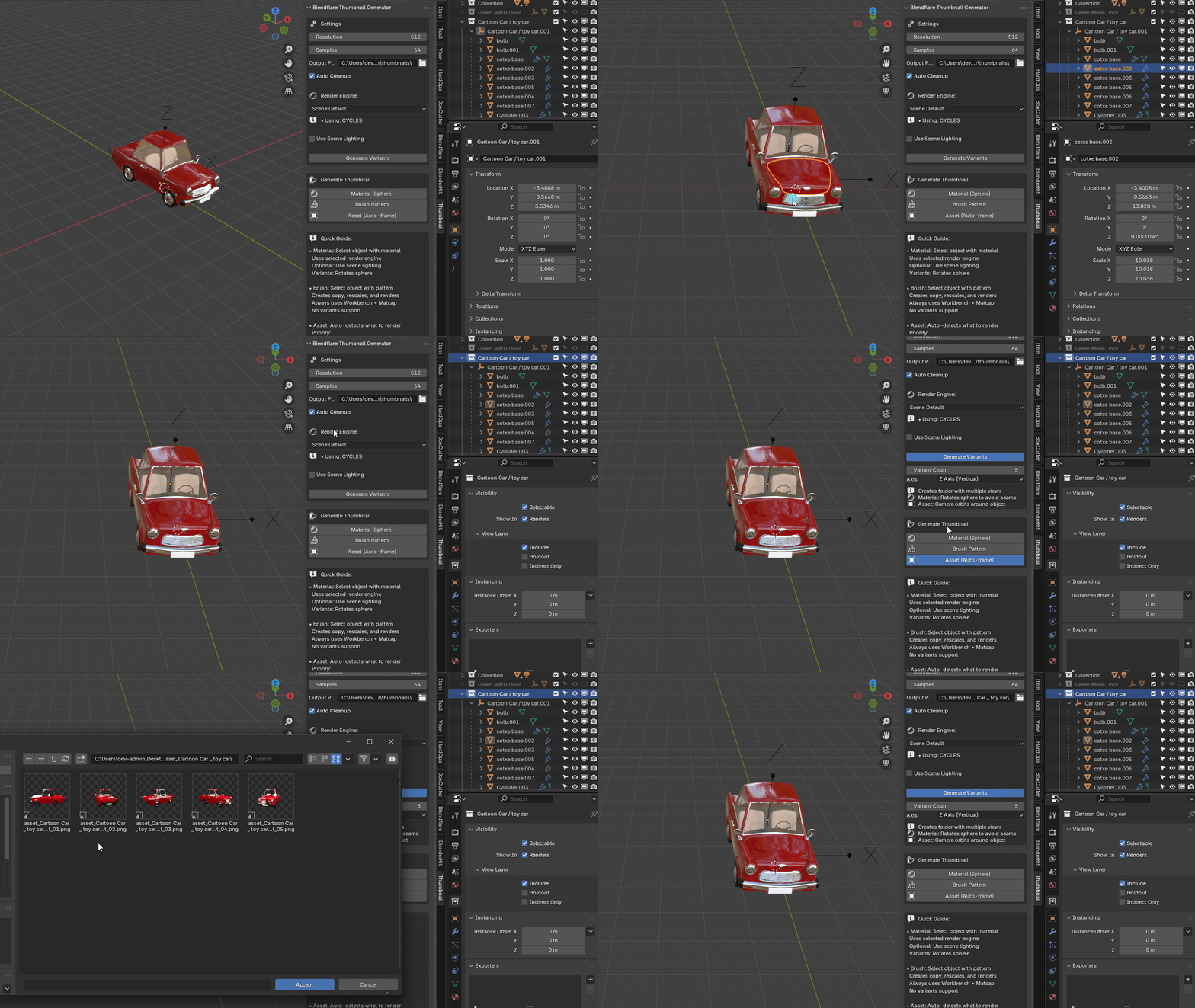
Model by Jordi Se-Cam from BlenderKit
Resolution
256-4096px (default: 512px)
Samples
32-512 for quality control (Cycles/Eevee only)
Output Path
Customize save location (default: //thumbnails/)
Render Engine
Scene default, Cycles, Eevee, or Workbench
Auto Cleanup
Removes temporary setup after render
Use Scene Lighting
Option to use existing lights
Generate Variants
Create 2-12 views with rotation/orbit
●Material Thumbnails
- 1. Select an object with the material you want to render
- 2. Open the Thumbnail panel in the 3D Viewport sidebar (N panel)
- 3. Click Material (Sphere)
- 4. Find your thumbnail in the output folder
●Brush Thumbnails
- 1. Select the mesh object with your brush pattern applied
- 2. Click Brush Pattern
- 3. The addon will create a copy, rescale it, and render with Workbench
●Asset Thumbnails
The addon auto-detects what to render with this priority:
- 1. Selected objects (if any are selected)
- 2. Active collection (if nothing is selected)
Simply select what you want to render and click Asset (Auto-frame).
- •Thumbnails are saved as PNG with transparency (RGBA)
- •Default location:
"//thumbnails/"(relative to your .blend file) - •Naming convention:
material_[MaterialName].pngbrush_[BrushName].pngasset_[ObjectName].png
- •Variants create folders:
material_[Name]/material_[Name]_variant_01.png
Pro Tips
- •Resolution: Use 512px for standard uploads, higher for detailed assets
- •Lighting: Try both studio and scene lighting to see what works best
- •Variants: Great for showing different angles without manual setup
- •Padding: Adjust frame padding (default 1.5) if assets appear too tight or loose
Troubleshooting
Thumbnail appears empty:
- • Ensure objects are not hidden in render
- • Check that objects have geometry (not empties)
Matcap not found (Brush mode):
- • The addon searches for specific matcaps; default will be used if unavailable
- • This doesn't affect functionality, just appearance
Variants creating wrong rotations:
- • Try changing the rotation axis (X/Y/Z) in settings
- • Z axis works best for most assets
This addon follows the official Blendflare upload guidelines: